Important Notes:
- The Admin Lock process is designed to auto save/sign/lock incomplete events where the original staff completing the event is no longer available
- This process is only accessible to select staff.
- Admin Lock/Lock Previous Events Training video
- Please note if record is audited:
in order to keep the integrity of the records so that events are signed, managers are using this function
How to Auto Save/Lock/Sign Incomplete/Unsigned Events
Reports >Clients >Services & Treatment >Client Treatment Plans
Note: If the event does not have the Admin Lock option; contact the helpdesk for further assistance.
- Run the report for Incomplete/Unsigned events
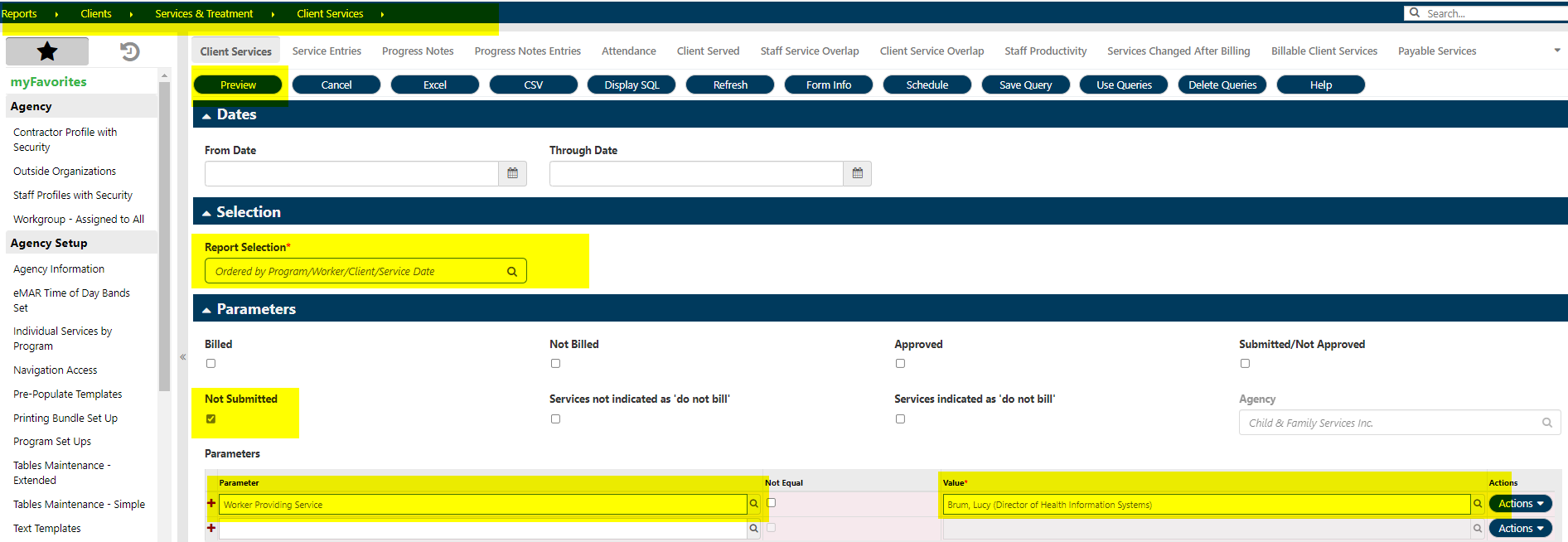
- Click on the Date of Service to open the event

- Click on "Routing" then "Begin Admin Lock"
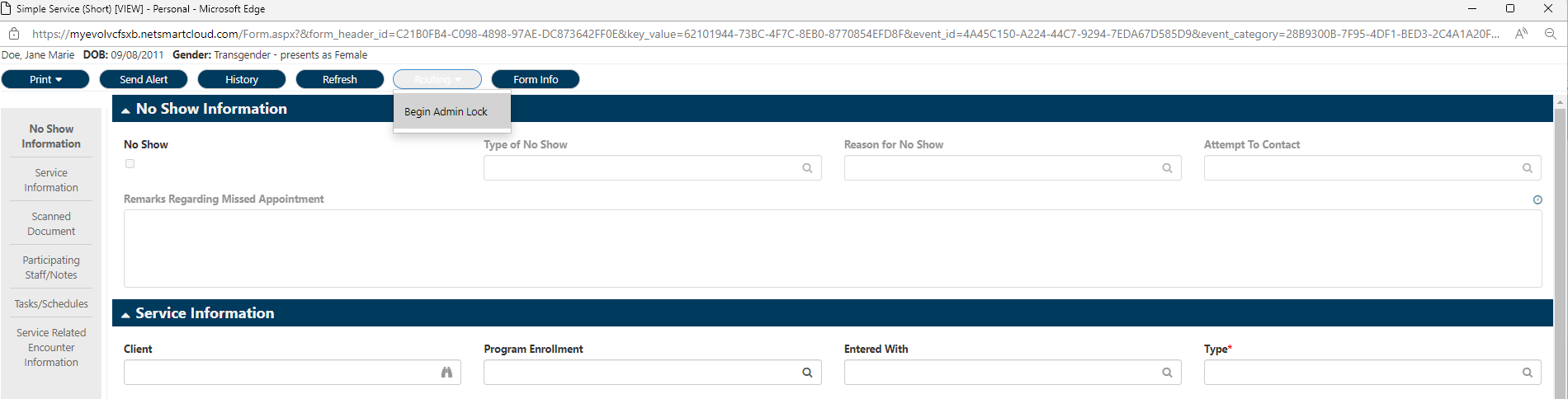
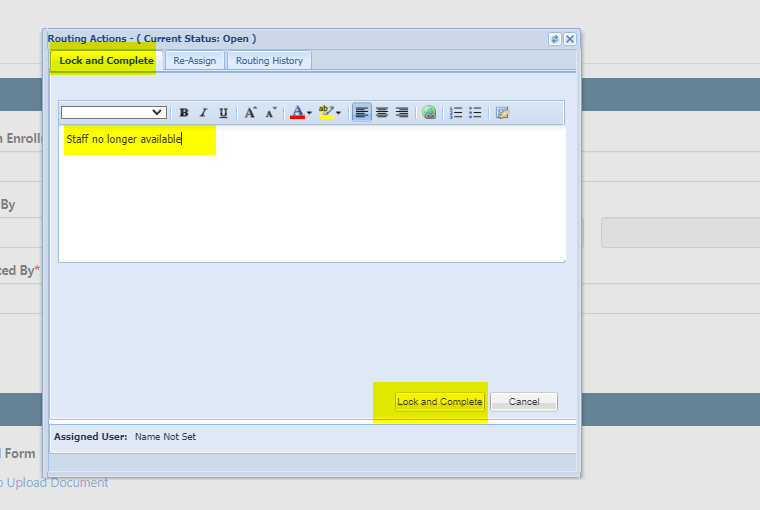
- Click on "Lock and Complete" at top of Routing Actions page
- Add Comment
- Click on "Lock and Complete" at the bottom of Routing Actions page.
- Click on "OK" to the Saved Successfully message
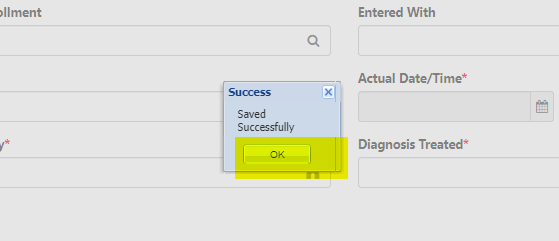
- Verify event was saved, e-signed and locked

Was this article helpful?
That’s Great!
Thank you for your feedback
Sorry! We couldn't be helpful
Thank you for your feedback
Feedback sent
We appreciate your effort and will try to fix the article